
Adding Unity Firebase to the Package Manager

Adding Unity Firebase to the Package Manager
Hello everyone, game developers and game development enthusiasts, in this article, I will talk about how you can add Google's Firebase SDK to the "Package Manager" section in Unity and use it more easily.
What is the Package Manager?
For those who don't know, let me give a quick summary, the "Package Manager" is a handy little program/tool provided by Unity that allows us to control the packages we add to our games much more easily.
From here, we can update, remove, downgrade, or use preview versions of the plugins/packages we add. In short, we can manage as we wish.
When adding plugins from outside, removing them can get you lost among many files, but plugins added from here can be removed, updated with just a click, and it is quite easy.
For those who don't know what the Package Manager is, I think you now understand its purpose from this short summary, and I'm returning to the main article.
How to Add the Firebase SDK to the Package Manager?


The package manager settings window will open, and you will see a section called "Scoped Registry". When you fill in the required fields here, the Firebase SDK will be added to our package manager and we will be able to manage the SDK easily.
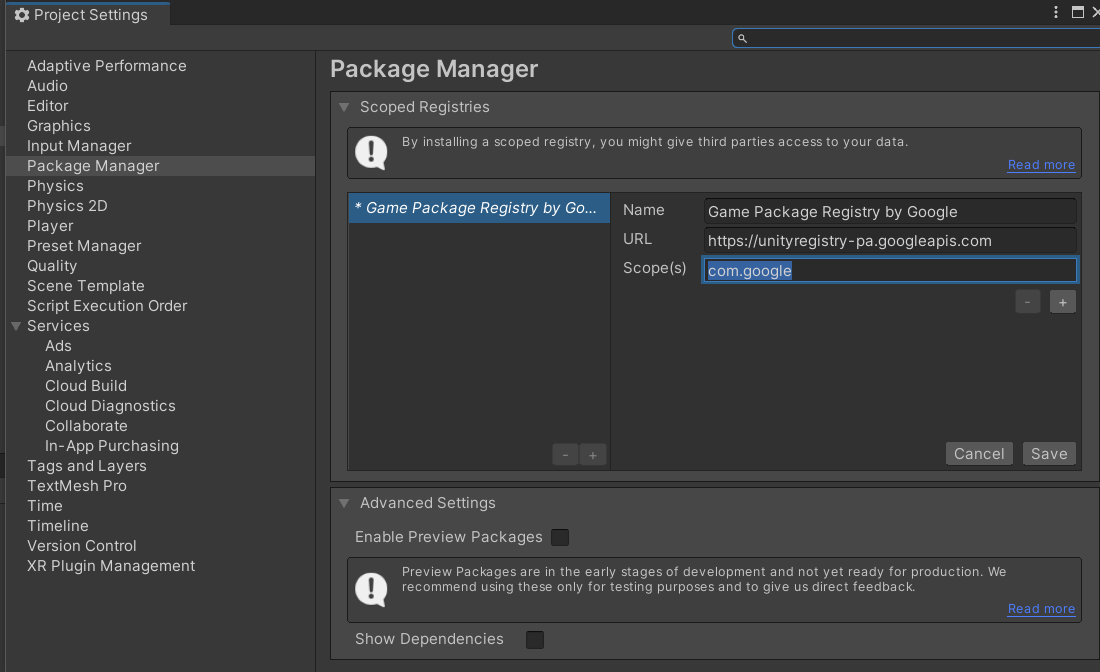
When you fill out the area shown above and click the "Save" button, the Firebase SDK will be added to the system without any problems.
"scopedRegistries": [
  {
    "name": "Game Package Registry by Google",
    "url": "https://unityregistry-pa.googleapis.com",
    "scopes": [
      "com.google"
    ]
  }
]
If you want to receive the preview versions coming to the package, you can select the "Enable Preview Packages" option below. For stability, I do not recommend using this in your published or soon-to-be-published projects!

Now, when you go to the "My Registry" section from the Package Manager, you can easily access the packages provided by Google for your project.

Now you can easily install and manage any package you want from here, and this brings us to the end of our article. See you in the next articles, take care and if you have any questions, do not hesitate to ask below. See you soon.
Yorum Gönder