
How to Download Samsung Notes on Windows 10

How to Download Samsung Notes on Windows 10
Hello friends, I will explain how you can download and use the Samsung Notes application, which Samsung users use on their phones for note-taking, on a Windows device other than Samsung. Happy reading.
First of all, if you try to install the Samsung Notes app on a device other than Samsung, you will get an error like "This device is not supported." That’s why in this article, I will explain how to overcome this error.
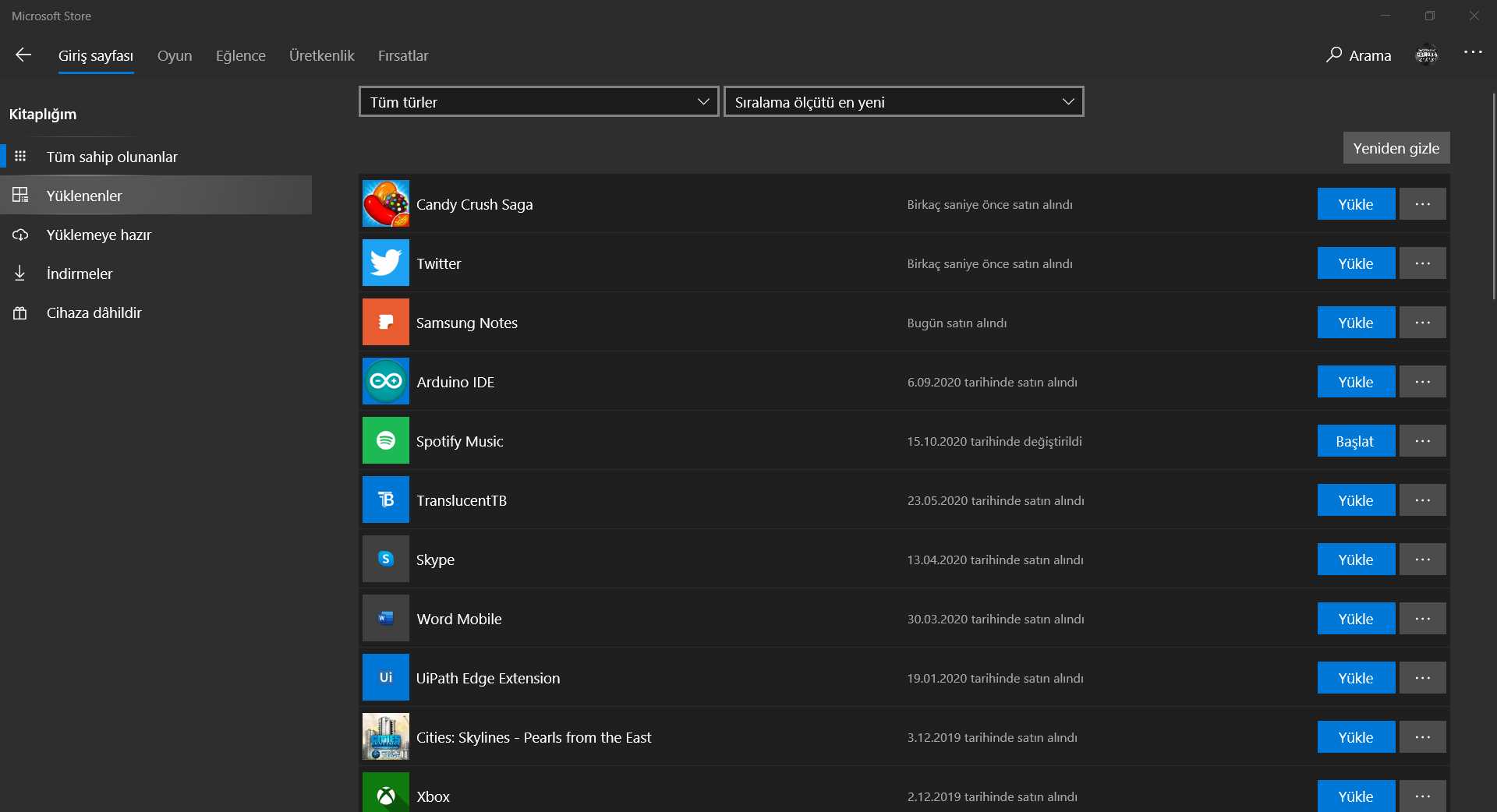
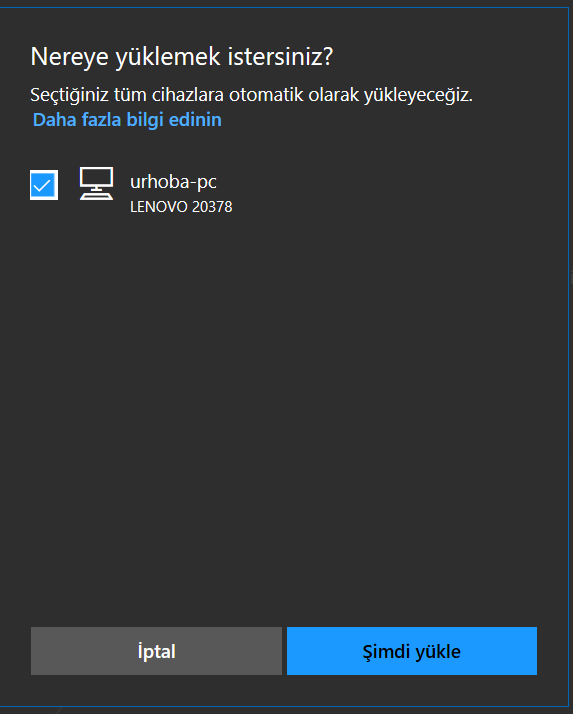
What we're going to do is actually very simple. We will connect to the Microsoft Store via a browser, click on purchase for the app, and then download and install Samsung Notes on our non-Samsung device from the "purchased" section in Windows. Don’t worry, you won’t pay any fees for this process.
Anyway, let’s move on to how to do it step by step.
Step 1: First, click here, log in to your Microsoft account, and add the Samsung Notes application to your cart.

Step 2: Click on the cart and then click the "pay for Samsung Notes" button and complete the payment process.
Note: You do not need to pay any fee.





Yorum Gönder