
Unity JDK Installation

Unity JDK Installation
Hello everyone, in this post I will talk about the installation of one of the components required for Unity, specifically about the installation of JDK (Java Development Kit), which is necessary especially to use Google components on Unity without issues. If you do not install this component properly, you may encounter many problems such as ads not showing up after you set up Google ads.
Especially the possibility of encountering an error like "JAVA_HOME not found" is quite high.
Let's move on to the installation.
First, click here and go to the site to download the JDK, then click the download link for your operating system and the version you want to use and download it to your computer.
Since I am currently using Windows, I am downloading the Windows version and the latest version available.

After downloading, I won't say much about its installation because it's enough to keep clicking next and select the location where you want to install it.
Actually, I don't really recommend changing its install location, anyway, what matters to us are the changes we will make on the computer after this installation.

Now after the installation, I type "System Variables" in the search part and go into the option "Edit environment variables for your account".
** Since I use my computer in English, I don't know the exact Turkish counterparts, but I guess it's system variables and edit system variables for this account.
If there is a variable/data named JAVA_HOME on the opened page, it actually means you can use JDK without issues.

If you do not see a screen like above, click the "New" button and fill as below.
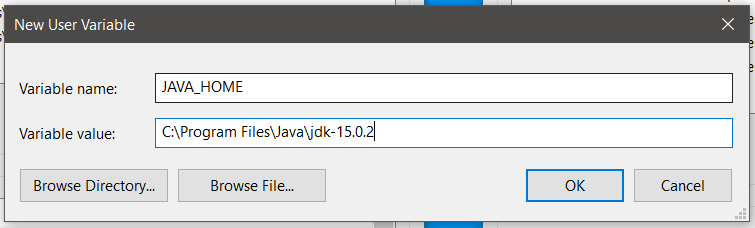
After typing "JAVA_HOME" in the Variable Name part, you need to enter the JDK path in the Variable value part. For this, you can select your JDK folder by clicking Browse Directory. In general, you can find installed JDK versions under "C > Program Files > Java".
If you have previously installed Python, you know that after adding a variable to the system via the Edit Path method, the computer should be rebooted for the newly added variable to work without problems; after doing these steps, restart your computer just in case.
After these steps, your JDK version will have been successfully installed on your computer and you can use it together with Unity.
If any of you encounter a problem during the installation, feel free to contact me in the comments section. I wish you a good day.
Yorum Gönder