
Unity UI Elements

Unity UI Elements
Hello friends, in this article I will talk to you about the UI elements found in Unity.

One of the main points that attracts the player's mind as to whether a game will be played or not is the UI system, which has gained a very important place in the game industry by being divided into two parts as UI and UX.
There are many elements available to design UI in Unity, so let's take a look at these elements together.
Text

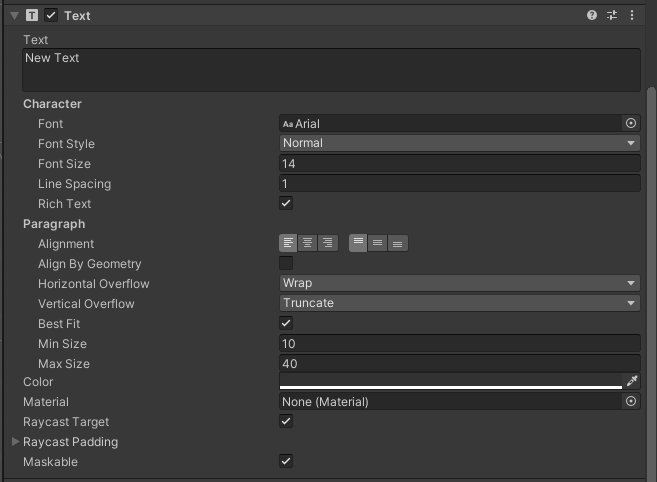
It is the element that allows us to write text on the screen in the game.
We write our text in the Text section
We make settings about the letters in the Character section.
- Font: Character type of the letters.
- Font Style: Bold or italic style.
- Font Size: Size of the letters.
- Line Spacing: Line spacing.
- Rich Text: Rich text format, allows us to use HTML codes. (<b>Bold text</b>)
- Alignment: Horizontal and vertical position.
- Align By Geometry: Places it while preserving the geometric ratios.
- Overflow: Whether the text will overflow vertically or horizontally.
- Best Fit: Tries to fit the text into the frame. (Min and Max values need to be entered.)
- Color: Lets you set the color of the text.
Image


- Source Image: Image file (must be Assets / Sprite.)
- Color: Allows you to change the dominant colors in the image, in Unity, if you have a character you want to color, the white tone areas will take the color you select here.
Button


- Interactable: Whether it is clickable or not.
- Transition: Effects related to clicking. (
- Color Tint allows you to give the user a feel with animations related to the color, etc.
- Sprite Swap allows you to place the drawn button states you prepared before.
- Animation allows you to give feedback via animations.
- )
- On Click(): Here you place your coded script and by selecting a function from the script, you can assign an action to the button.
Toggle


Slider


Scrollbar


A component that allows elements not fitting the screen to be visible by playing with the position of the out-of-screen panel. (The bar that lets you scroll a webpage on the right side.)
Dropdown


Input Field


Canvas

- Render Mode: Where and how the canvas will be rendered.
- Pixel Perfect: Prevents pixel distortion in pixel art games.
- Target Display: Select on which screen it will be shown.
- Shader Channel: Selects which shader channel to use.
- UI Scale Mode: Choose what determines the screen resolution.
- Scale Factor: The size of canvas elements
- Reference Pixels Per Unit: Pixel resolution reference
Panel
Scroll View
EventSystem

It is a script written by Unity that enables the animation and other operations of UI elements to run and I do not recommend making much change to it.
If you want to use plugins like Input Manager, which come ready-made by Unity in your project, you need to add the EventSystem.
You can get information on how to use some of the elements via the video below.
Yorum Gönder