
Formatting a Computer Using a Phone

Formatting a Computer Using a Phone
Hello friends, in this post I will explain how you can format your computer using your phone when you don't have a USB stick with you.Although we are going to format using the phone, to show the operating system as a bootable file for the phone, we need to have a computer with us.
Requirements to format a computer using a phone;
A rooted Android phone.
DriveDroid application for our phone
Rufus program
The operating system to be installed with the format.
If all the requirements are complete, we can now proceed to setting up our phone to format the computer.
We open the DriveDroid application that we downloaded to our phone and when we open it for the first time, we are greeted by a setup screen. On this setup screen, we need to make settings so that the computer recognizes the phone as a USB device.

1. On the screen, press the Next button and go to the second screen.


2. On the screen, it checks for root permission. On this screen, give root permission to the app and press the Next button again.


3. On the screen, it asks you to set where in the phone the USB devices seen by the computer will be stored. Click the "Configure Image Directory" button, create and select a folder. Now you can press the Next button.

4. On the screen, it asks you to connect the data cable to the phone, you can press the Next button now, even without connecting it.

5. On the screen, it asks which Android kernel you are using. It is enough to select "Standard Android Kernel".

6. On the screen, it asks what type of USB storage device you want to turn it into. Selecting "Android shows up in OS" will be sufficient.

7. On the screen, it asks if it will be a bootable USB, here I recommend you select "Booted successfully using DriveDroid".

8. On the screen, just press the Next button directly.
The DriveDroid setup procedure is now complete. Now we need to prepare a USB image via DriveDroid.

On the main page of DriveDroid, tap the + sign and select "Create blank image.." option.


Where it says "Filename" enter the name you want to give to the USB.
Where it says "Size", enter how many GB you want this USB to be. (You cannot give more than your phone memory.)
When you press the tick mark at the top right, the image will start to be created, but this may take a while.
Now, to connect the USB you created to the computer, click on it and select "Writble USB on Mass Stroge".

When you connect it to the computer, it will now ask you to format the disk. (Don't worry, formatting the disk will not erase your data on the phone.)
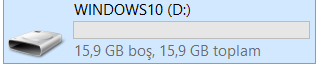
Once you format the disk, it will no longer be any different from a real USB; you can use it as a format USB or a regular USB as you wish.

Now you can select this USB and install any operating system you want using Rufus.

Once the process with Rufus is done, select the USB you created via DriveDroid again and this time select "CD-ROM on Mass Stroge" to format the targeted computer.

The USB you created will now appear as a CD, and you will be able to format easily.
If you follow my instructions carefully, you will be able to successfully format your computer without any issues. If you get stuck during any step, feel free to ask in the comments, have a nice day.
Yorum Gönder